
XJRunner Tests
The XJRunner Tests pane allows the XJRunner test list to be created and configured. Tests in the lists can be grouped into Test Groups and can be enabled, disabled, or set to run when a particular condition is met.
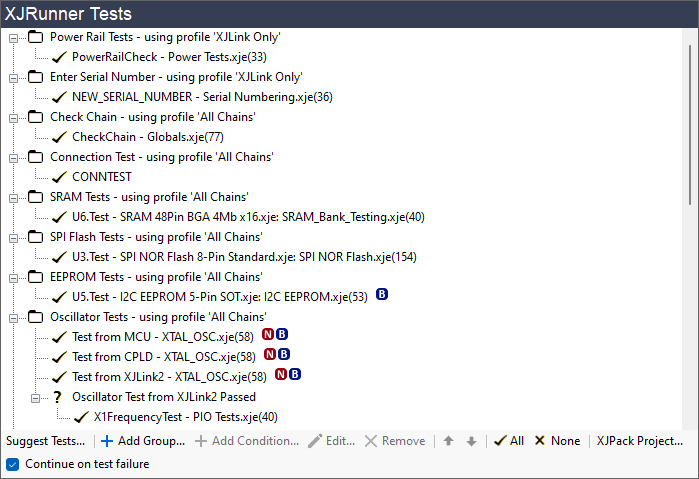
Editing the test list
The following buttons are beneath the test list:
- The Suggest Tests... button opens the Suggested Tests dialog that suggests new tests to add to the test list based on the test devices in the project.
- The
 Add Group... button opens the New Test Group dialog to allow a new test group to be added to the test list.
- The Add Condition... button opens the Add Condition dialog to create a new condition that contains the selected item. Additional test groups or functions can be added to the condition once it is created.
- The
 Edit... button opens (as appropriate) the Edit Test Group dialog, the Edit Test Function dialog, or the Edit Condition dialog to allow the currently selected item to be modified. If multiple test groups are selected this button allows you to configure the profile for all selected groups simultaneously.
- The
 Remove button removes a test function from a group when a function is selected, and removes a group entirely if a group is selected.
- The
 and
 buttons allow the test list to be re-ordered, either moving functions within a group, or changing the order of groups in the list.
- The
 Current Preset dropdown menu allows presets (custom sets of tests) to be defined for quick selection on the Run Tests screen.
- The XJPack Project... button exports your project to an XJPack File that can be used in production in XJRunner. If there are any outstanding changes to your project, you will be prompted to save the project first.
- The Continue on test failure checkbox controls what happens when a test fails. See below for more information.
Test groups and functions may also be re-ordered by dragging and dropping. Test functions can also be dragged from one group to another.
Continue on test failure
If the checkbox is left unchecked, then any test failure will cause testing to stop immediately. If checked, then tests will continue to be run if tests fail. However, there are still some events that will cause testing to stop immediately even if this checkbox is checked:
- The user presses the Stop button
- A broken JTAG chain is detected
- EXIT is called inside a test function
Choosing default tests
Next to each item in the test list is an icon indicating if it is enabled to run by default. Clicking on the icon changes its state from enabled to disabled and back again. A enabled group has a folder icon  and a disabled one has a greyed out folder with a cross in it
 . A enabled function has a tick icon
 and a disabled one has a cross
 .
Defining test list presets
Test list presets are subsets of the test list that can all be enabled together. The Default set of tests is a preset that is included in all projects but additional custom ones can be defined. For example, you might define a preset that contains only board programming functions and none of the tests, or a subset of tests that are needed for debugging a particular fault. See the Run Tests screen for how presets are applied at runtime.
Custom presets are created and selected for editing using the Current Preset dropdown menu. The Create New Preset... button opens the Create Test List Preset dialog to allow a new preset to be created. Presets can be created with either all tests, no tests or the default tests enabled initially. Then that set of tests can be modified by toggling tests on or off in the test list.
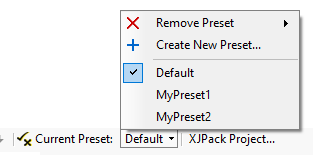
Once any custom presets are defined, they will appear in the Current Preset dropdown menu alongside the Default preset. The selected item in the menu shows which preset is currently being edited. Switching between presets in the menu will reset the enabled state of all tests in the test list to match the target preset. The Remove Preset submenu allows any custom presets that are no longer required to be deleted. Note that the Default preset can never be deleted.
N.B. test list presets can only affect the enabled state of tests, not the content of the test list. Any test adds, edits or removals while a preset is selected will still apply to the test list globally.
See Also
XJTAG v4.4.0