
Interface Options
This controls general user-interface settings.
Application Layout
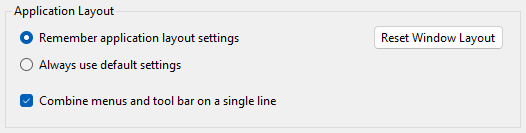
N.B. These settings affect all XJTAG applications.
- Remember application layout settings
- When this option is selected, the JTAG Chain Debugger will remember the locations and settings of all its windows.
- Always use default settings
- When this option is selected, the JTAG Chain Debugger will always open its windows in their default state.
- Reset Window Layout
- Click to restore the application's dockable windows back to their default positions.
- Combine menus and tool bar on a single line
- When set, the main tool bar in the JTAG Chain Debugger will be displayed alongside the application's menus. When unset, the toolbar will appear underneath.
Prompts

The JTAG Chain Debugger provides the option to switch off different prompts.
Some users are happy to be prompted to confirm that they want to perform an action while others find this annoying. The JTAG Chain Debugger provides options to switch off different prompts.
- Prompt before configuring the XJLink2 to apply power via the USB
- The XJLink2 is able to supply power to a board, but will prompt the user first before doing so.
- Prompt to save pin mapping to file on application close
- Closing the application will lose any changes made to a pin mapping, so the application will prompt to save changes before closing.
- Warn when a change to a pin mapping would cause additional changes to the JTAG Chain configuration
- When a new pin mapping is selected, either by loading an existing file or selecting a preset, changes may be made to Test Reset Sequences and the Advanced JTAG Chain configuration. The application can warn before this happens.
XJTAG v4.2.5