
Basic Guide to creating a new XJEase Library
A basic guide to creating a new XJEase Library Editor project and building your first XJEase library.
Step 1: Create a new Library Project
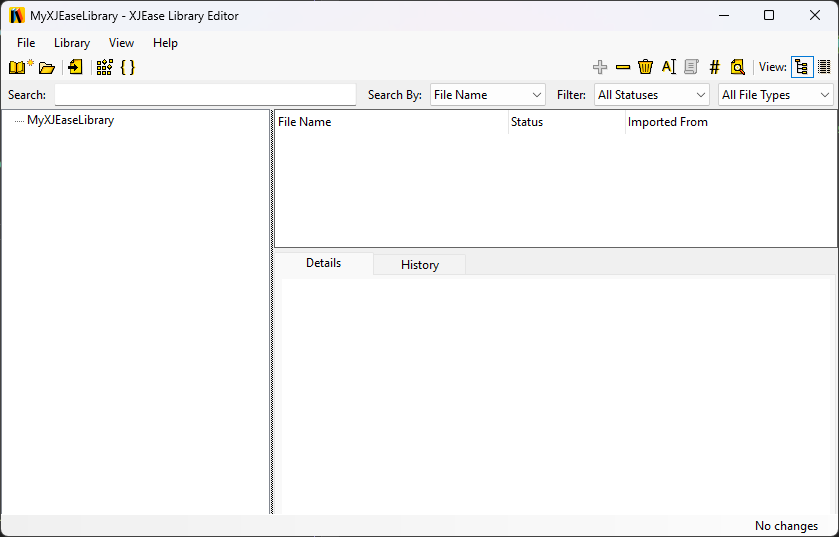
Click the  New Library... button on the File menu or toolbar to create a new project.
You will be prompted to choose a file location and name your new .libraryproj file. It's a good idea to start in an empty directory. Note that a new library cannot be created in a directory that contains an XJDeveloper project file (.xjd file).
Step 2: Import XJEase Files
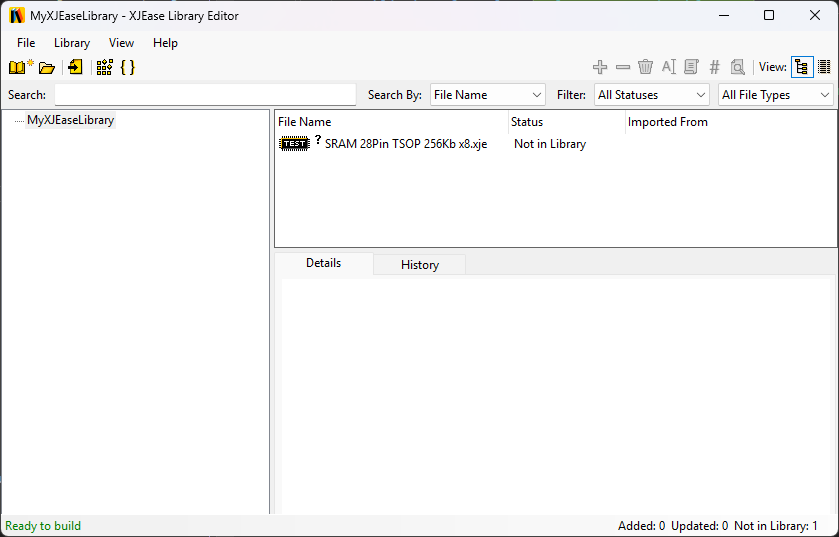
Once you've created the new project you can now start import XJEase files. There are two ways to do this:
- Manually adding files to the project directory - Moving XJEase files into the library project's directory will make them appear in the file list. You can also drag files from disk onto a category or the file list to copy these files into the coresponding category's directory.
- Import files from an XJDeveloper project - Under the Library drop down menu, click the Import From Project button to import XJEase and PDD files from an XJDeveloper project.
Step 3: Add files to be included in the library
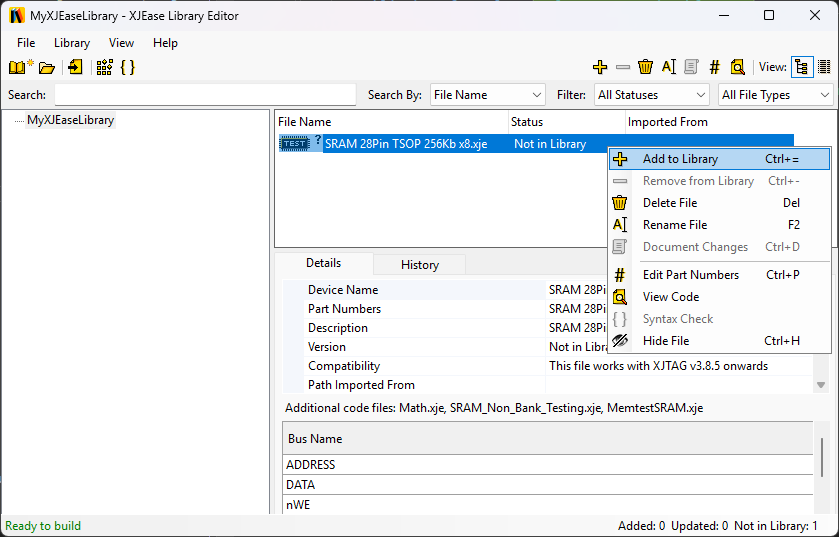
- Files initially appear as
 Not in Library when moved into the library directory. To add them to the next library build, click the
  Add to Library button in the toolbar or after right-clicking the file.
 - Files imported from XJDeveloper projects will automatically be added to the next library build.
Step 4: Build the library
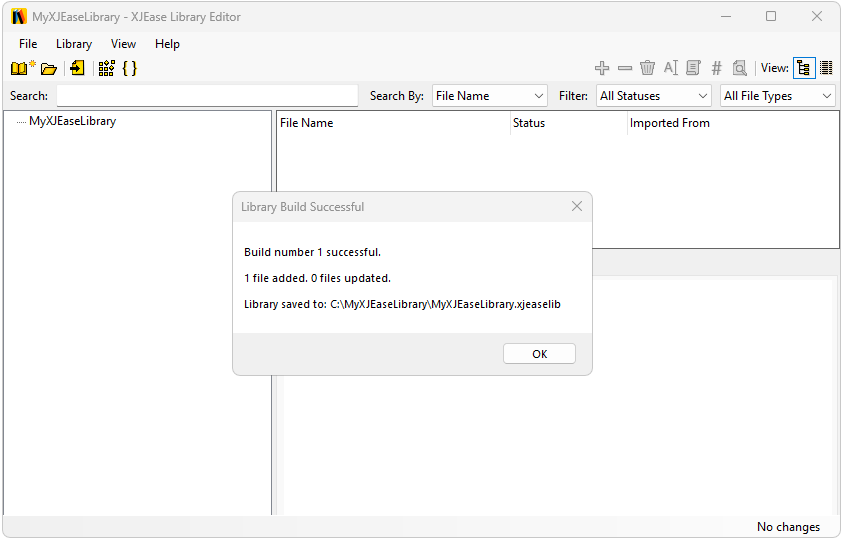
Select Build from the Library menu to build an XJEase Library from the collection of library files in your library project.
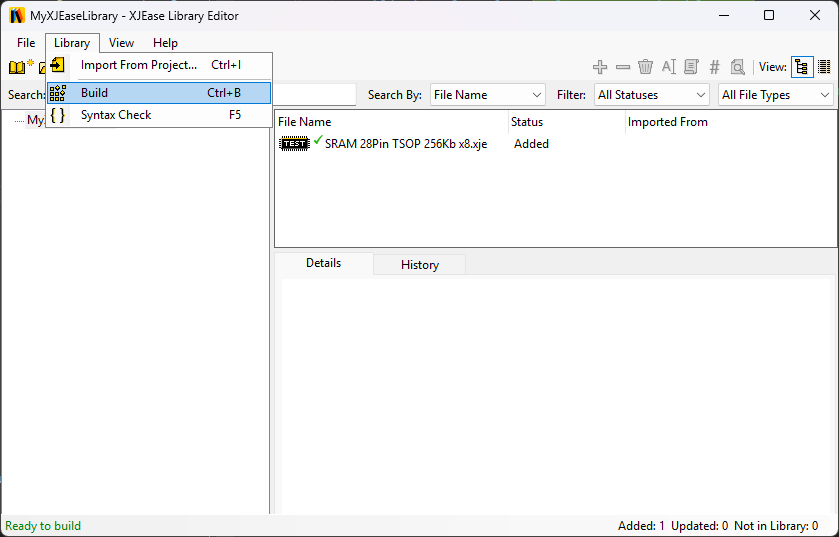
Congratulations, you now have a new XJEase Library (.xjeaselib file) you can use in XJDeveloper! You can import your library into XJDeveloper via the options dialog.
XJTAG v4.3.1