
Copying Variations Between Variants
If several variants have similar differences to the root project, it may be more efficient to copy variations from one variant to another rather than creating the variations for each variant from scratch.
- New variants cannot be created as part of the copy process; the destination variant must already exist before starting.
As illustrated by Figure 21, the process is to first select the source variant, then toggle the Show: buttons so that all required variations are visible. Next select the variations to be copied, and then copy them to the destination variant either by using the Copy To dropdown menu or by dragging and dropping them on to the destination variant in the Variants pane on the left.
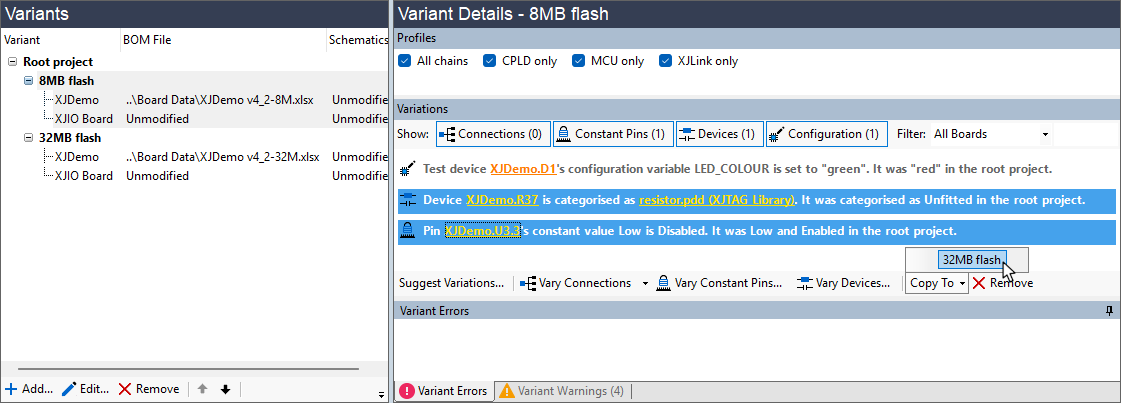
Figure 21: Copying Variations
If the copying process tries to apply a variation to an item that is already varied in the destination, you will be warned of the conflict and given the option to either leave it unchanged or to overwrite it.
- Multiple variations can be selected at a time to allow groups of variations to be copied simultaneously.
XJTAG v4.3.1