
Checking Variants for Warnings And Errors
Once all the variations have been entered, the variant project should be checked for errors and warnings.
- Selecting the different variants in the left pane allows you to switch quickly between each variant. However, they are not fully loaded at that stage and won't be until XJDeveloper is asked to generate the errors and warnings. When a selected variant isn't loaded, an option to load it will be provided in the message text:
-
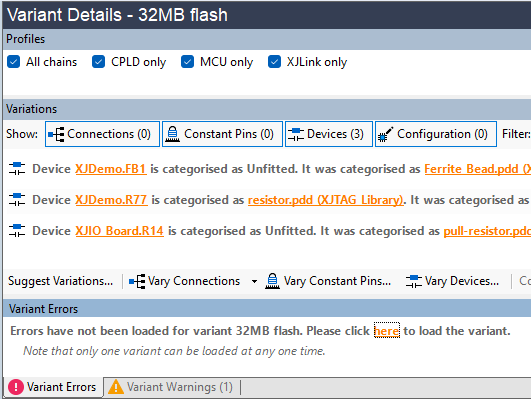
- Only one variant can be loaded at a time. If you want to check errors and warnings on all variants without having to reload them each time, the Errors in Variants dialog can be used instead as described below.
The items displayed for the selected (and loaded) variant are shown in tabs below the Variant Details as illustrated below. Right-clicking on a device reference will allow you to see the item on the schematic (if one has been imported) or to open the device's details in Explorer.
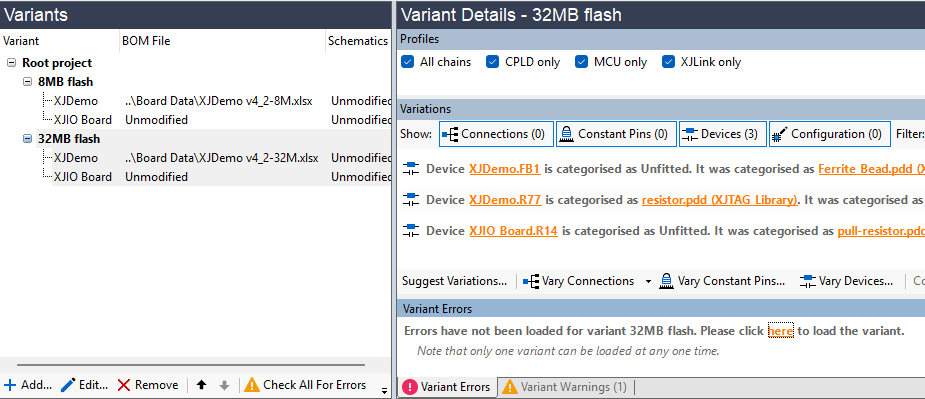
Figure 22: Viewing Errors and Warnings for a Single Variant
Viewing Errors and Warnings for All Variants
Once all the variant projects are complete, any errors will need to be cleared before you create XJPack files for production. It is also good practice to do a final check for warnings on the root project and its variants as part of this debugging process. Checking is best done by clicking the Check All For Errors button at the bottom of the Variants pane (Figure 23 below). This allows you to switch between the different variants to view their warnings and errors without having to reload them each time.
- An XJPack file cannot be created if any of the included variants have errors.
- Using Check All For Errors is the best way to check for errors because it opens a separate non-modal dialog box that can be kept open while you navigate through the project to investigate the errors.
The root project and each variant are shown in different tabs as illustrated below. The number of errors is shown in parentheses in the tab's title. If a number isn't shown, click on the tab to check that project for errors.
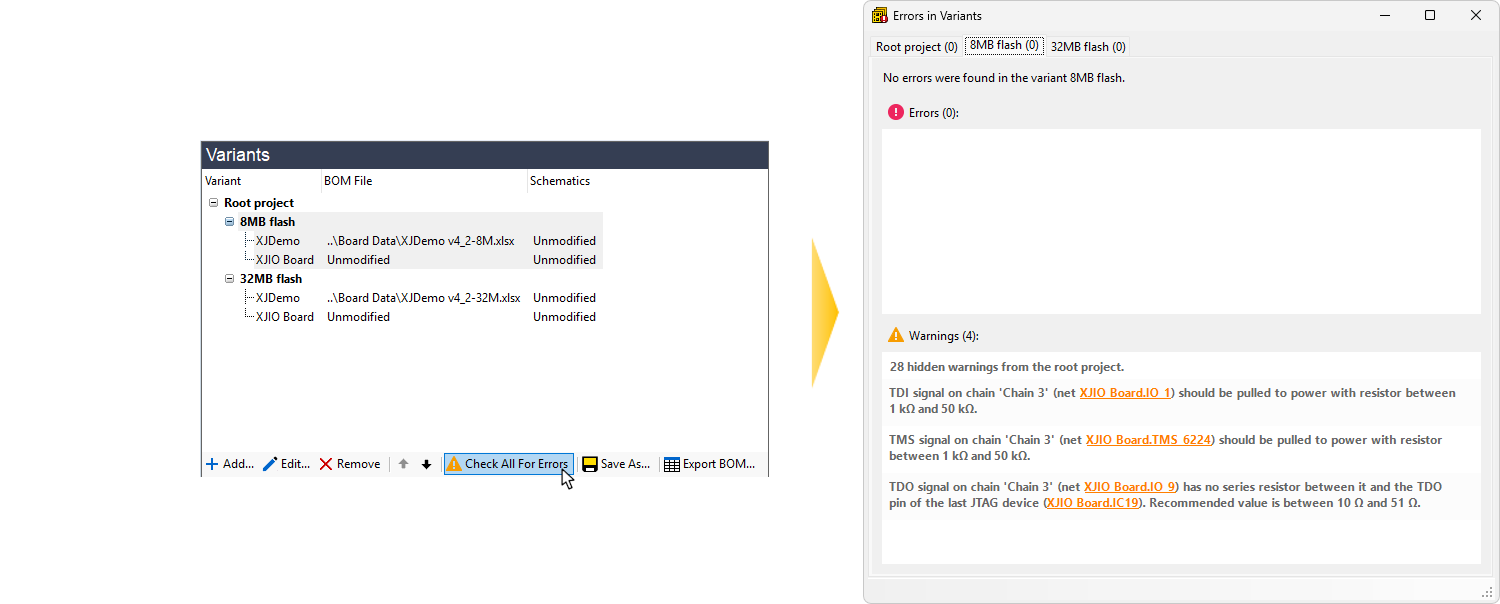
Figure 23: Checking Root and Variants for Errors and Warnings
XJTAG v4.3.1