
FTDI Devices
XJTAG supports not only its own XJLink JTAG controllers, but also some devices produced by FTDI.
Quick links:

Supported FTDI devices
- FT232HL
- FT232HQ
- FT2232HL
- FT2232HQ
- FT2232H-56Q
- FT4232HL
- FT4232HQ
- FT4232H-56Q
- C232HM-DDHSL-0
- C232HM-EDHSL-0
Connecting your FTDI device to XJTAG
If your FTDI device is mounted on the UUT, ensure it is powered and then simply connect the device to the PC via USB.
If you are using an FTDI USB MPSSE cable, you should connect its pins to appropriate test points on the UUT as well as plugging the cable into the PC via USB.
Supported FTDI devices that have been detected by XJTAG are displayed in the XJLink Manager.
Pin mappings
The pins on your FTDI device can be configured using a pin mapping. When adding an FTDI pin mapping to your XJDeveloper project, you must select the specific device you have and which of its channels you want to use. The pin mapping is then specific to that channel. You may only have one FTDI pin mapping in your project.
There is a pre-defined JTAG pin mapping for channels that support MPSSE which places the JTAG signals on the correct pins. It can be loaded by from the Pin Mapping menu on the Pin Mapping screen in XJDeveloper or clicking the Load Preset button in the JTAG Chain Debugger application. This pin mapping can be used as an example but the intention is that you can create your own pin mapping that suits your project.
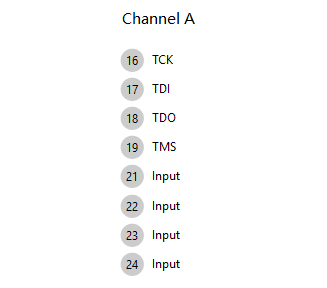
The pre-set JTAG pin mapping for channel A on an FT4232HQ is shown below:
Pin types
The table below describes how the pins on an FTDI device can be configured:
| Pin Type | Description |
|---|---|
| TDI* | This signal is the data input to the JTAG chain on the UUT. This pin must be defined in order to use the JTAG chain that the FTDI device is connected to. |
| TDO* | This signal is the data output from a JTAG chain. This pin must be defined in order to use the JTAG chain that the FTDI device is connected to. |
| TCK* | This signal synchronises the other signals that make up the TAP. This pin must be defined in order to use the JTAG chain that the FTDI device is connected to. |
| TMS* | This signal controls the operation of the TAP. This pin must be defined in order to use the JTAG chain that the FTDI device is connected to. |
| nTRST* | This is an optional JTAG pin which is used by Test Reset Sequences to reset JTAG devices. Assigning a pin to nTRST will ensure it is incorporated into the built-in sequence for the associated TAP. It may also be used as a PIO pin in XJEase code and in the Test Reset Sequence. |
| PIO | This pin type allows direct control of pins on the FTDI device either during a Test Reset Sequence or during XJEase testing. |
| Low | This is a low signal driven by the FTDI device; normally used for configuration of the UUT. |
| High | This is a high signal driven by the FTDI device; normally used for configuration of the UUT. |
| Input | This signal type simply indicates that the FTDI device will not drive this pin during testing. It is the default setting for pins that have not been configured. |
*These pin types are only available on FTDI device channels that support MPSSE.
If you are using an FTDI USB MPSSE cable, you can use the included VCC and GND pins but they cannot be controlled or configured using XJTAG.
Design considerations and troubleshooting
- If using an FTDI USB MPSSE cable, ensure the ground pin of the cable is connected to Ground on the UUT.
- Check that the UUT's power supply is enabled and that sufficient rise time is allowed for voltage rails before starting tests.
- On the UUT, JTAG signals should be correctly terminated, to reduce the potential for reflected signals to cause glitches in JTAG operation. XJTAG produces DFT guidelines documents in several languages which give details of how best to terminate signals - please download them from the XJTAG website or contact XJTAG support to obtain a copy.
- FTDI devices are restricted in what TCK frequencies are supported. It is recommended to use the Get Max TCK feature when selecting a target TCK frequency for use with an FTDI device.
- Some third-party tools will install their own drivers for FTDI devices. You must uninstall these drivers in order to use FTDI devices with any XJTAG software - FTDI devices will not appear in XJLink Manager unless they are set to use their default drivers.
The FTDI Chip logo is a registered trademark of Future Technology Devices International Limited.
XJTAG v4.3.1