
Varying Configuration Variables
If the root project and a variant use the same test device but with different configuration variables, the values can be changed for the variant without recategorising the device: select the required Variant in the left pane and click Vary Devices...:
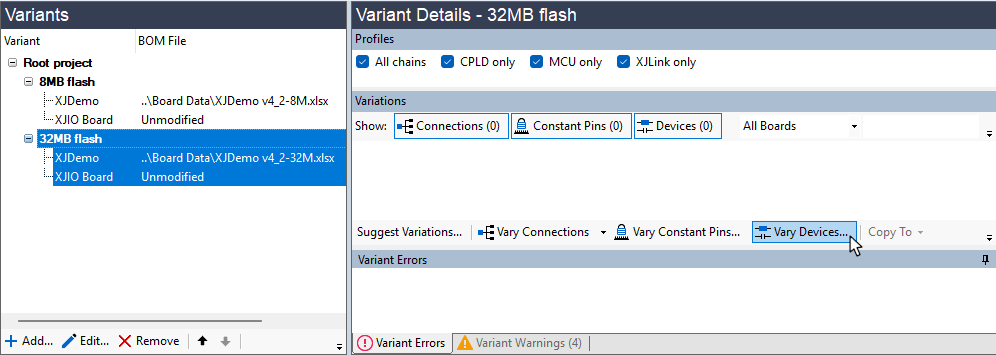
Figure 13: Preparing to Update Configuration Variables
This opens the Vary Devices dialog (Figure 14). Select the required test device and click Configure... If the project has multiple boards, the relevant one can be chosen from the Filter: dropdown menu. The text box can be used to search for a particular device.
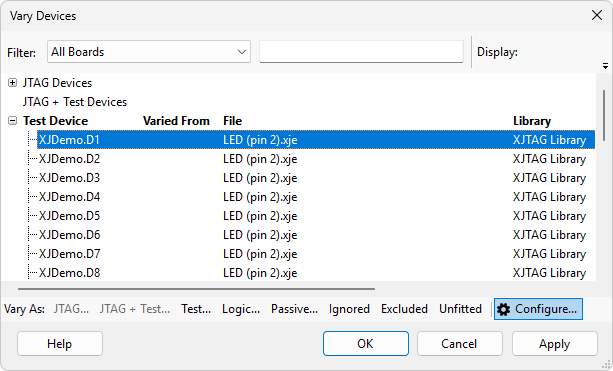
Figure 14: Changing Configuration Variables in a Variant
In the Configure Device as Test dialog that opens, the configuration variables for the selected device can now be changed. For more information on using these variables, refer to the user guide section on Constants that change in Alternative Device Configurations.
The configuration variable change(s) will now be shown in the Variant Details pane (click the Configuration button to display them if necessary):
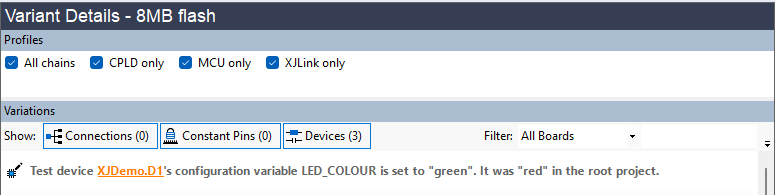
Figure 15: Viewing a Variation in Configuration Variables
- If your design allows multiple approved parts to be used for a single device, you may want to have one XJPack file that can be run irrespective of which manufacturer's part is fitted. This cannot be done by using configuration variables but can be achieved using XJTAG's multi-sourcing functionality which allows a test device file's XJEase code to, for example, read the manufacturer's ID and then perform the test appropriately.
XJTAG v4.3.1