
Device Categories Options
This screen allows the customisation of the categories that are used by XJDeveloper to recognise various classes of devices. XJDeveloper ships with a default set of patterns, but the user is free to customise these to match their own conventions and to add their own patterns.
This automatic recognition of various classes of devices helps to speed up the categorisation of such devices.
Many of the device categories are required and identified as Built-in, such as the ones for resistor and capacitor, so cannot be renamed or deleted.
XJDeveloper uses them to suggest how to categorise different devices, such as pull resistors and coupling capacitors.
The Device Categories box displays all the available categories. When one is selected, the name and patterns appear at the bottom of the screen and can be modified.
New categories may be added to the list by clicking the Add... button. Categories may also be removed by selecting a category and clicking the Remove button. Both these options may also be accessed by right-clicking on the category list and selecting Add Category or Remove Category respectively from the context menu.
For each device category there is a single pattern for the device reference and patterns for any of the currently stored BOM fields, including user-defined fields. If a device matches the reference and optionally any of the BOM patterns specified then it is suggested as a member of that category.
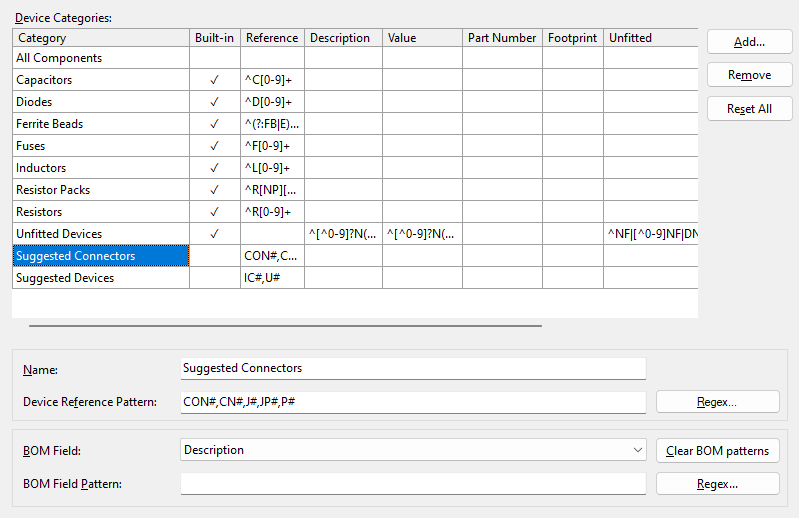
The table summarises all the device categories with their respective patterns. Any category with a check mark in the Built-In column is considered to be built-in and cannot be removed. A pattern can be edited either in the corresponding box or by clicking the Regex... button in the lower part of the dialog. Double-clicking a pattern also opens the regex editor.
To reset all patterns to the XJDeveloper defaults, press the Reset All button. This will reset all the category patterns and delete any user added categories. Categories can be reset individually by right-clicking an entry and selecting Reset Category from the context menu.
BOM Field Patterns
The BOM Fields section allows additional matching to be performed on specific fields of the BOM data that has been imported for a board. Each BOM field can be selected in the drop-down and a pattern entered in the pattern textbox below. The patterns can also be edited directly by double-clicking them in the table above to open Regular Expression Editor, or by right-clicking and choosing Edit Regex... from the context menu. A single pattern may also be cleared by selecting Clear Regex from this context menu.
The Clear BOM patterns button clears all currently set BOM patterns for the currently selected category.
Patterns
There are two different types of pattern available:
- Simple Patterns
The default type of pattern is a simple matching pattern, where the following symbols have special meanings:
- '#' is a wildcard matching one or more digits
- '%' is a wildcard matching one or more letters (a-z or A-Z)
- '*' is a wildcard matching any sequence of characters (including numbers)
Any number of alternative patterns may be listed separated by commas. See below for some examples.
Regular expressions - Regular expressions are a more sophisticated way of expressing a pattern to match with, and these take precedence over simple patterns. A regular expression can be entered by clicking the Regex... button to open the Regular Expression Editor.
The simple patterns can be used for user-defined categories and some of the default categories, however all of the built-in categories, such as Resistors, only use Regex patterns.
Examples
- C#
- Matches 'C' followed by any number of digits.
String Match? C23 Yes C23_1 Yes IC23 No - C%
- Matches 'C' followed by any number of letters.
String Match? Ca Yes CaaBB Yes C23 No - *_CH#
- Matches a string containing '_CH' followed by a number.
String Match? ADC_CH1 Yes _CH1 No - CON#,CN#
- Matches a string starting with 'CON' or 'CN' and then followed by a number.
String Match? CON12 Yes CN5 Yes SCON12 No
XJTAG v4.2.5