
Graphical Navigation Panel
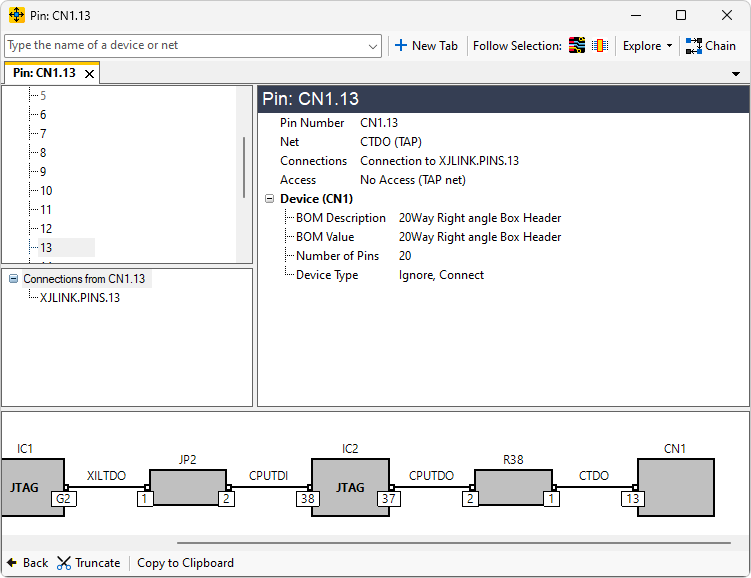
At the bottom of the Explorer window is a panel which shows the path which you have explored, through devices, nets, joined nets, pins etc. If you wish to go back to an item you have already browsed through simply locate it in the graphical panel and click on it.
If you now choose a different route through the circuit the
navigation panel will delete from the current point to the end of the
previously explored devices and add the new locations instead. You can
also remove everything after the currently selected object by clicking
 Truncate
either in the toolbar at the bottom of the screen, or in the menu which
appears if you right-click on part of the chain.
If you wish to remove the last item of the explored path, you can do so by clicking the
Truncate
either in the toolbar at the bottom of the screen, or in the menu which
appears if you right-click on part of the chain.
If you wish to remove the last item of the explored path, you can do so by clicking the
 Back button.
The explored path can be copied to the clipboard by using the Copy to Clipboard button, and can then be pasted, for example, to a graphics application of your choice for printing.
The Chain button at the top of the Explorer window can be used to show the chain in the graphical panel. If there are multiple chains in the project, it will give a dropdown list. It will also change the current tab to show details of the last pin in the chain.
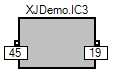
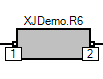
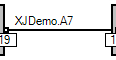
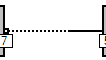
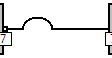
Graphical Navigation Key
XJTAG v4.2.5