
Explorer Tabs
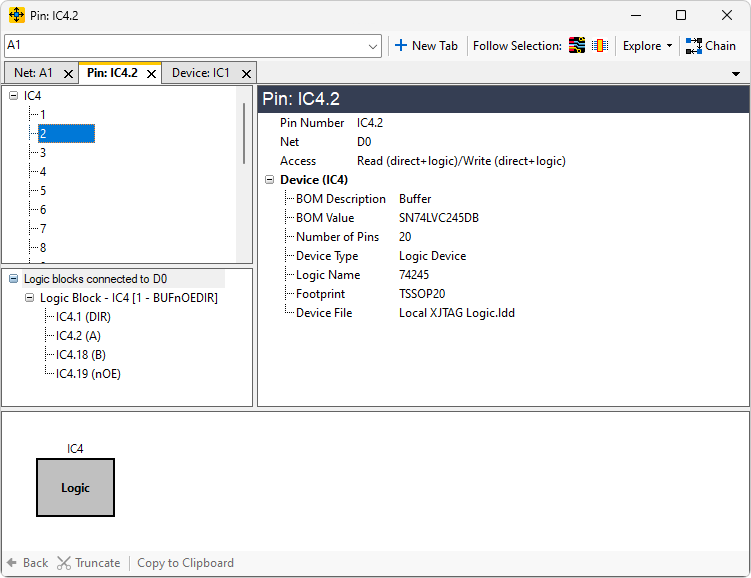
The Explorer window supports tab functionality. This allows multiple netlists to be explored in a single window in different tabs, with a standard managed way to switch between tabs.
New Tab button
To create new tabs, use the  New Tab button found at the top of the explorer window, or press Ctrl + T.
Each tab is totally separate and can explore any parts of the circuit. The titles on the tabs describe what they are currently exploring.
New Tab button found at the top of the explorer window, or press Ctrl + T.
Each tab is totally separate and can explore any parts of the circuit. The titles on the tabs describe what they are currently exploring.

Switching between tabs
To move between tabs you can click on the tabs directly, or use the drop-down at the top-right of the tabs, which will list all currently open tabs.
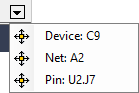
Also you can switch between tabs using Ctrl + Tab and Ctrl + Shift + Tab.
You can close any currently selected tab by clicking on the cross also visible in the picture above.
Ordering tabs
You can re-order the tabs by dragging them to their desired position.
XJTAG v4.2.5