
Select BOM File
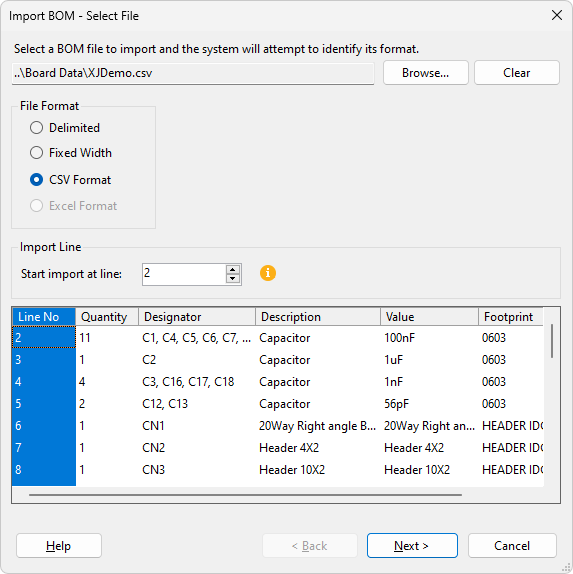
The first step is only shown when importing information from a BOM file. This step is to select your BOM file and configure it's format, so that XJTAG can read the BOM data correctly.
Click Browse... to select the file that contains the BOM information. Once selected XJTAG will try to determine the format of the BOM file. If this is incorrect then you can change the file format by using the radio buttons inside the File Format box. The supported format options are: Delimited, Fixed Width, CSV Format or Excel Format. The data preview window at the bottom of the dialog shows how the data in the selected file looks with the current formatting. If any column headers are defined in the file above the start line they will be imported for use within this dialog.
If your BOM file data does not start on the first line of the file, you can specify the start line of the import by editing the number in the numeric control above the data preview panel.
If your Excel BOM file data is not located on the first worksheet, then you can specify the sheet by selecting the sheet number using the numeric control in the Sheet Options panel.
To configure the way XJTAG reads the data in your BOM file please see the following configuration pages for the different types of formatting:
Click Next > to assign the columns of the data in your BOM file.
XJTAG v4.2.5