
Viewing a Variant's Details
A list of variations can be seen in the Variant Details pane. Select the required variant in the Variants pane on the left of the screen, and its details will be shown on the right (see Figure 24 below). The Profiles section at the top of the pane allows you to view and edit which profiles are available – see the earlier section of this guide for more information on the use of profiles with variants.
The Show: buttons control the type of variation displayed. Clicking a button toggles it on and off; the outline of the button is emphasised when its variation type is being displayed. The number in parentheses shows how many variations will be displayed if the button is active.
If the project has multiple boards, the display can be restricted to show just the variations from one particular board using the dropdown Filter: menu. Select the All Boards option to view all the variations in the project.
To find a particular device, enter search text in the Filter: text box. The count displayed in the Show: buttons will change accordingly.
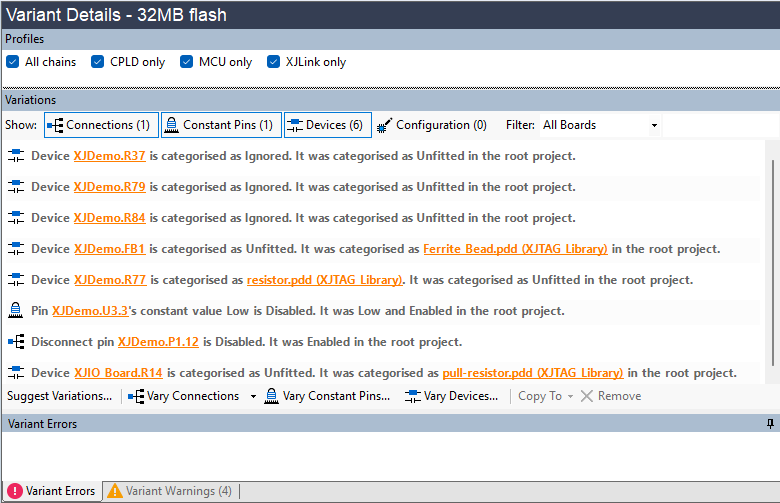
Figure 24: Displaying the Variations
Switching Between Variants
Only one variant can be loaded at a time, and it must be loaded to view its errors and warnings. Selecting a variant in the Variants pane will display its variations but does not automatically load that project. Instead, a message will be displayed in the Variant Errors tab at the bottom of the pane:

Figure 25: Loading a Different Variant
To load the selected variant, click the hyperlink in the message.
If you update the root project, it will be necessary to reload the variant.
XJTAG v4.3.1