
Boundary Scan Register Lengths
If check chain successfully counted the number of devices, it can check the length of the boundary scan register for each device in the chain.
In order to do this, XJTAG puts one device into PRELOAD mode and the remaining devices into BYPASS. Therefore, each device needs a BSDL file association, or a user specified Instruction Register (IR) length from which it can deduce the BYPASS instruction. However, it can only calculate the DR lengths for devices with a BSDL file associated with it (as only then can we obtain the PRELOAD instruction).
If a device's BSDL file specifies different values for the SAMPLE and PRELOAD instructions then this process is repeated using the SAMPLE instruction.
In XJDeveloper or XJInvestigator the BSDL files specified in the project are used. When running the stand-alone JTAG chain debugger the BSDL files or Instruction Register lengths must be specified.
The JTAG chain debugger will search the current BSDL library for BSDL files whose ID codes match those read from the chain. If a single match is found, this will automatically be chosen and displayed in the list on the Device Configuration tab. If no matches are found, you can add a matching file to the BSDL library using the View/Edit Library button. Alternatively, you can select a device in the list-view, and click on the Browse File... button in the BSDL Settings pane. This will fail if the ID codes don't match, and will prompt you to add to the BSDL library.
Devices with multiple matching BSDL files
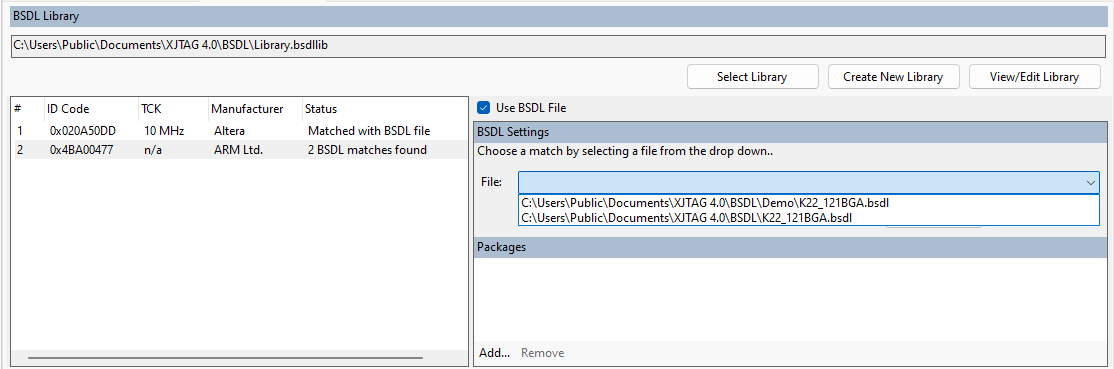
Unfortunately, this information read from the chain may not determine the BSDL file uniquely. If multiple matches are found, you are required to choose one. To do this, select the relevant device in the list, and choose a BSDL file from the drop-down list in the BSDL Settings pane. Precisely which file to use is also dependent upon the device package, which is often apparent from the BSDL file name.
Devices with no matching BSDL file
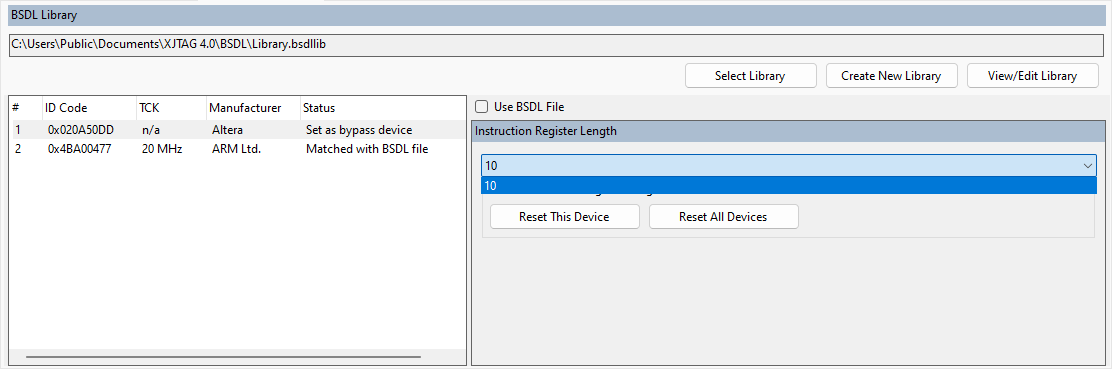
If you have no matching BSDL file, you can associate an IR length for the device. To do this, select the relevant device in the list, and uncheck the Use BSDL checkbox. The system will calculate the possible values for the IR length, and if there are multiple possibilities, you must choose one from the dropdown list in the IR Length pane.
Devices/BSDL files without an ID code
If any devices do not return an ID code, then they will be matched to all BSDL files that have no ID code defined.
Devices shown with an invalid ID code
If the number of devices counted and the number of id codes returned do not match, then the id codes for all devices will be shown as Invalid in the list on the Device Configuration tab. In this case JTAG Chain Debugger does not restrict the BSDL files that may be assigned to the devices. The output from Check Chain should be used to select the appropriate BSDL files manually. BSDL files may be selected using the Browse Library... (see Selecting Files From the BSDL Library) or the Browse File... button in the BSDL Settings pane.
XJTAG v4.3.1