
Varying Constant Pins, Connections and Disconnects
In a variant, Constant pins, Connections, and Disconnects can only be enabled or disabled; they cannot be added. If a variant needs to use a Constant pin, Connection, or Disconnect that isn't required in the root project, it should be added to the root and disabled. It will then be available to enable in the variant.
To enable or disable one of these items, select the variant in the left pane. To vary a Constant pin, click Vary Constant Pins... as shown in Figure 16. To vary a Connection or Disconnect, click Vary Connections and select the appropriate item from the pop-up menu:
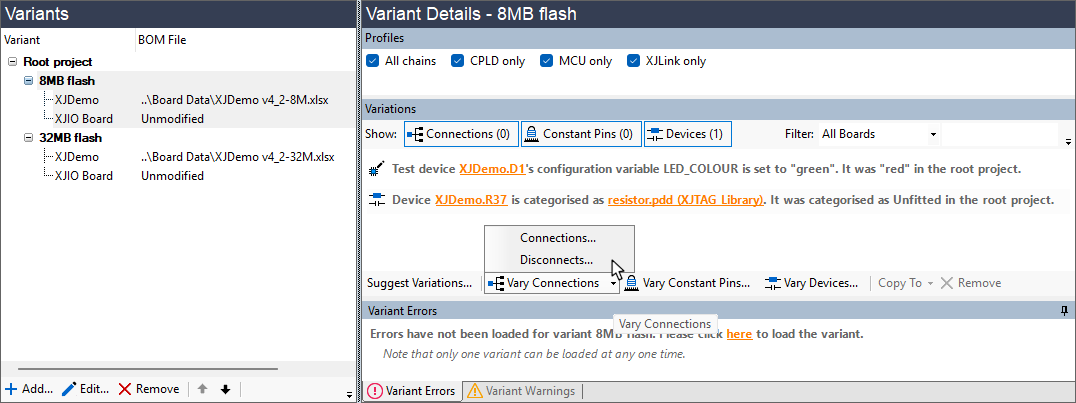
Figure 16: Varying the Enabled State of Constant Pins, Connections, or Disconnects
Varying a Constant Pin
Clicking Vary Constant Pins... will open the Vary Enabled State Of Constant Pins dialog, which lists all the root project's Constant pins. To change whether a Constant pin is enabled or disabled in the variant, add or remove the tick from the Enabled checkbox. Alternatively you can vary the value of the pin using the Value dropdown menu.
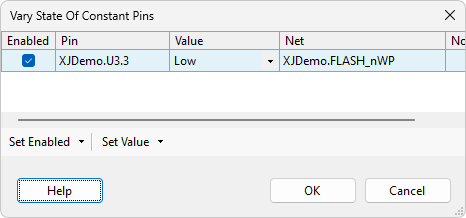
Figure 17: Varying a Constant Pin
- If you add a Constant pin to the root project, it will appear in all variants with the same value and enabled state as the root. It will only have to be changed in those variant(s) that need it to have a different state or value from the root.
Once all the Constant pins have been configured, click OK to apply them.
Varying a Connection or Disconnect
Select either Connections... or Disconnects... from the pop-up menu (Figure 16). In the Vary Enabled State Of Connections or Vary Enabled State Of Disconnects dialog, add or remove ticks from the Enabled checkboxes to enable or disable them:
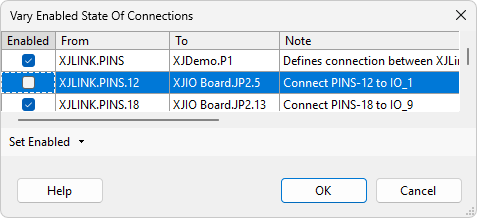
Figure 18: Changing the State of Connections
Once all the Connections and Disconnects have been configured, click OK to apply them.
Viewing Varied Constant Pins, Connections, and Disconnects
Once the variations have been entered, they will be shown in the Variant Details pane for whichever variant is selected on the left. Which types of variation are displayed is determined by the Show buttons (see Figure 19). These buttons toggle on and off and are outlined when active.
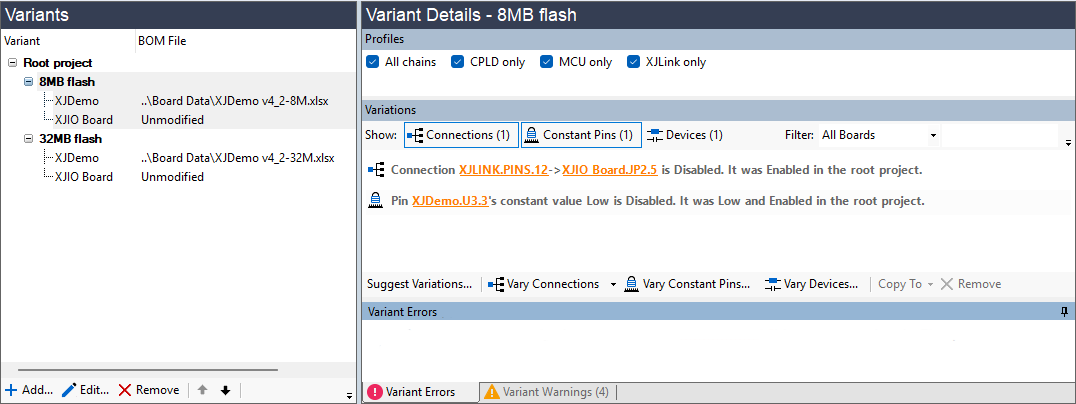
Figure 19: Viewing Variations Made to Constant Pins, Connections, and Disconnects
XJTAG v4.3.1