
Import Connections Dialog
The Import Connections dialog, shown below, is used to import connections from a .CSV file.
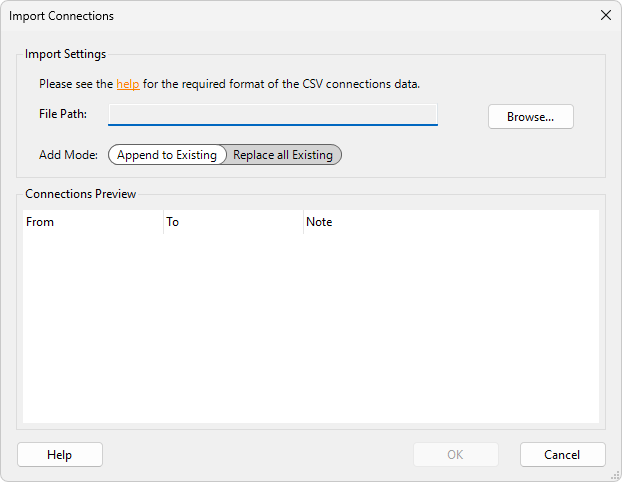
The CSV file may be selected by clicking the Browse... button at the top. The CSV files must follow a strict column order to be valid for import. The ordering must be the same as the ordering of the column elements in the connections list. The accepted formats are:
- Enabled (Optional), From, To, Note (Optional)
- Enabled (Optional), From Board, From Device, From Pin, To Board, To Device, To Pin, Note (Optional)
The first format allows you to define the pins or devices in a single column as board.device or board.device.pin. If the project only contains a single board then the board part of the reference may be omitted. The second format splits the references for the From and To entries into three columns; One column for the board, one for the device and one for the pin. If the project only contains a single board then the entries in the board columns may be left empty. Device-to-device connections are defined by providing empty entries in the pin columns. Columns for the Enabled state and connection Note may be optionally included. The Enabled state column should contain True for enabled and False for disabled. In both cases the column order must exactly match the order stated above, and column headers should not be included.
Any valid connections found in the chosen file are displayed in the preview list at the bottom of the dialog. A list or errors may be displayed if any invalid connections were found. These errors include the line number for the invalid row, and state the reason the connection could not be imported. Connections may be invalid if they connect pins to devices, or if either the From or To entries could not be found in the current project. Any duplicate connections found in the file are also treated as invalid.
The valid connections may be appended to or replace the existing list of connections. By default the Append to Existing option is selected. This may be changed by toggling the Add Mode toggle button in the dialog. If Append to Existing is selected then any valid connections that conflict with existing project connections are displayed in grey. These conflicting connections will not be imported.
Clicking OK will complete the import process and add the connections to the project.
XJTAG v4.4.0